
Vey guide
Set up your first computer, approve a device, and start a desktop or SSH session.
Contents
Client and Host
Install Vey Host on the computer whose screen you want to share. Open Vey on the device you want to use to control it. Start on the same local network and check the availability page for public downloads.
Connect a computer
Before you start
Install Vey Host on the computer you want to control and open Vey on the device you’ll control it from. Start with both devices on the same local network.
Preparing for public release Availability
-
Prepare Vey Host
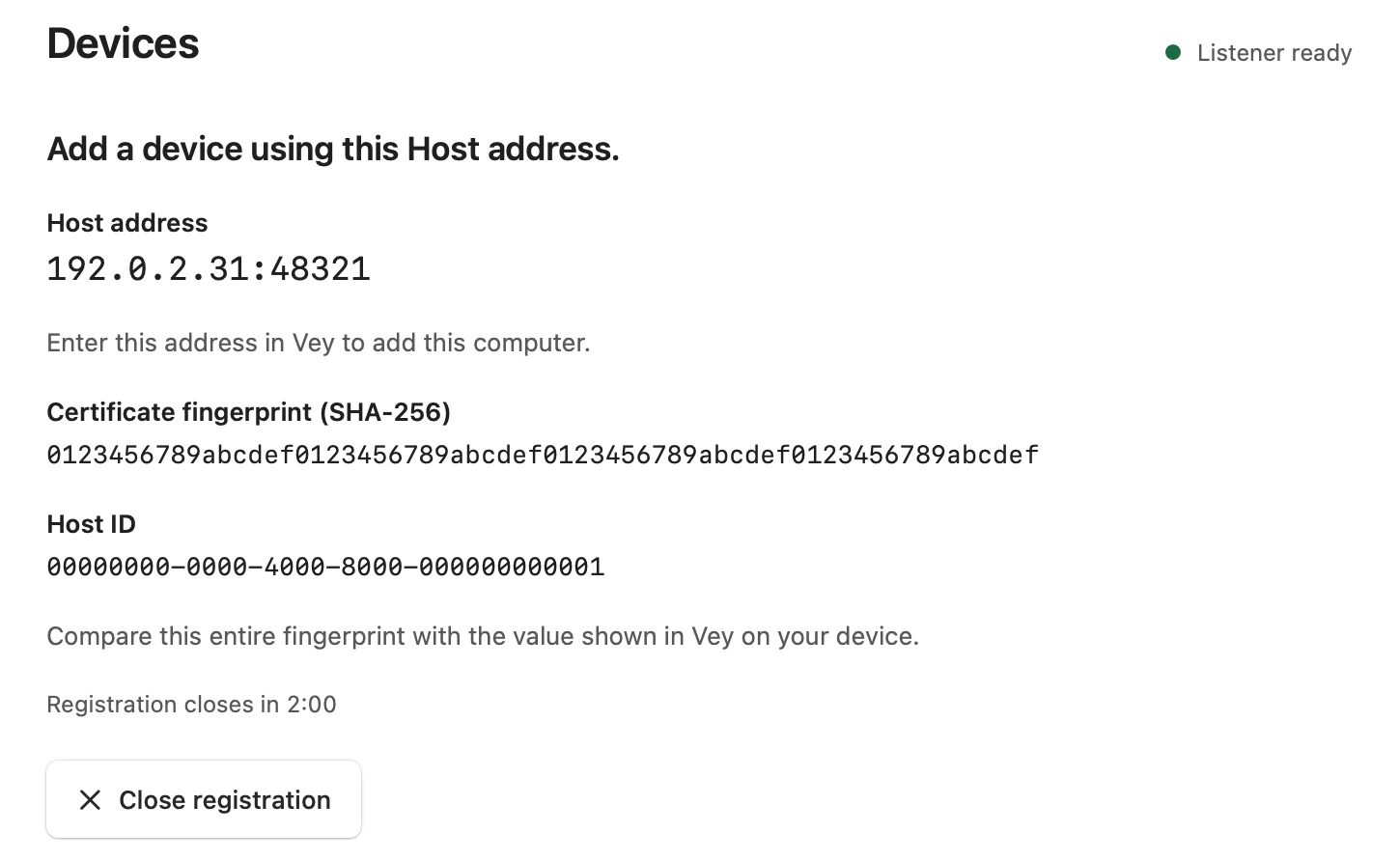
Open Vey Host on the target computer. On macOS, allow Screen Recording and Accessibility. When Host is ready, choose Add device, then Allow registration. Keep the address and certificate fingerprint on screen.
 View full size
Vey Host for Mac with device registration open. The address and fingerprint are examples. -
Add the computer in Vey
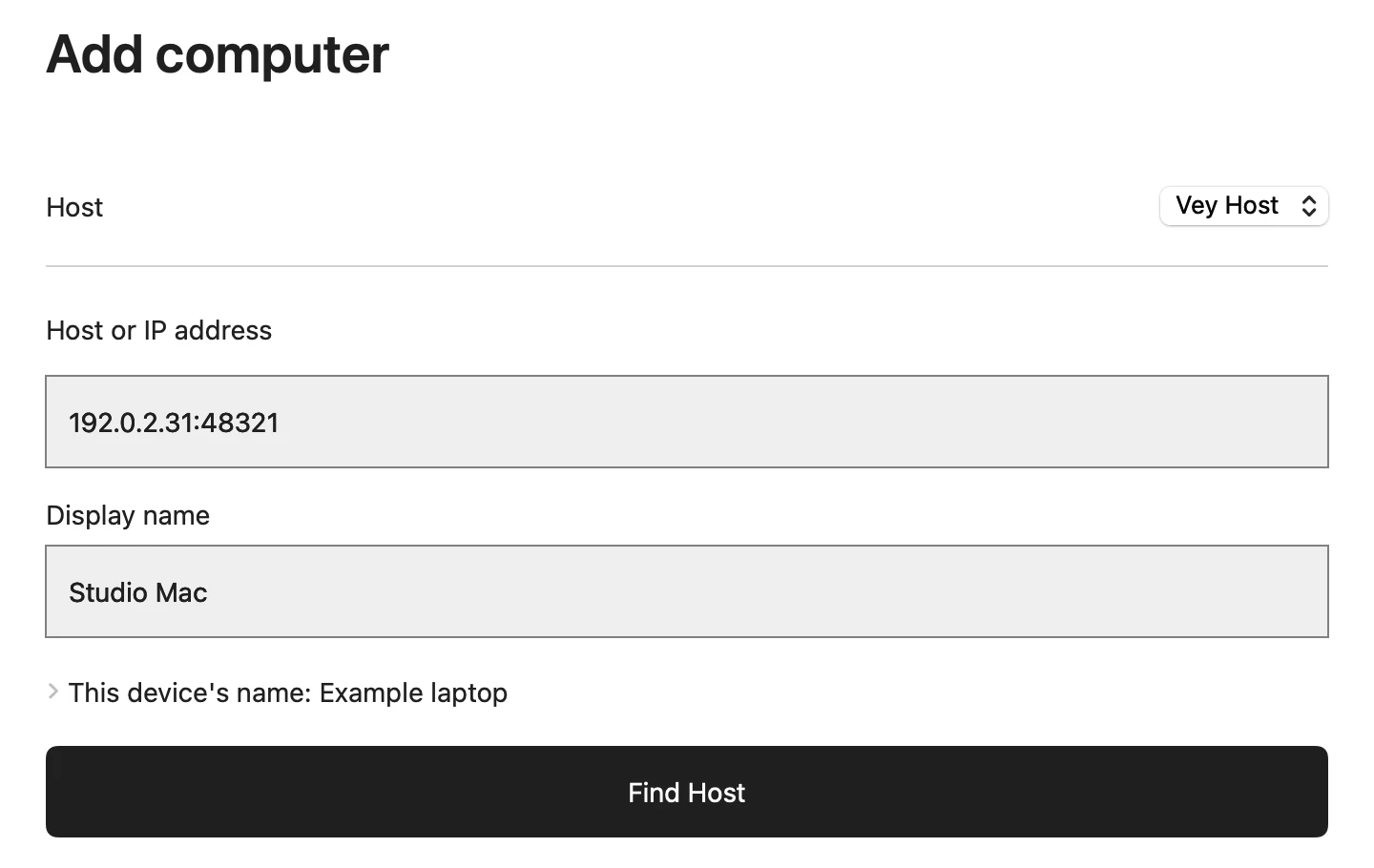
In Vey, choose Add computer and enter the address from Vey Host in Host or IP address. Choose Find Host. If your device asks for local network access, allow it.
 View full size
Add computer in Vey for Mac. Use the address from your own Vey Host. -
Verify the Host fingerprint
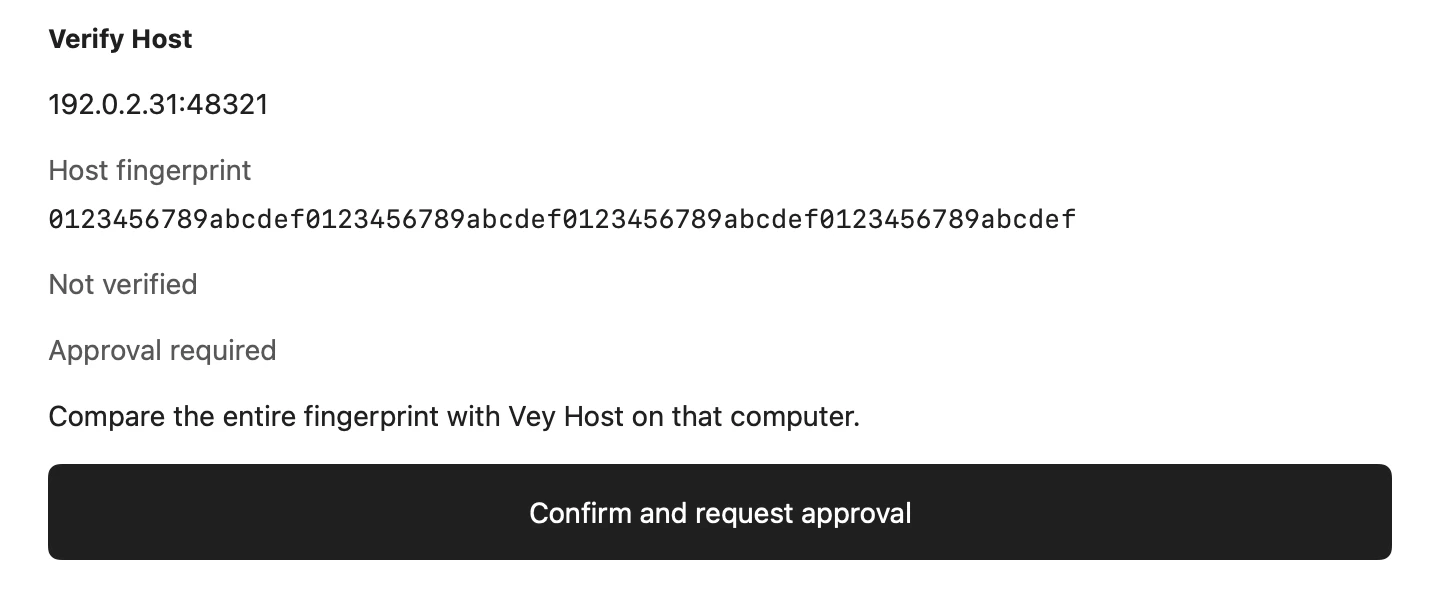
On Vey’s Verify Host screen, compare the entire fingerprint under Host fingerprint with the Certificate fingerprint (SHA-256) shown by Vey Host in step 1. Choose Confirm and request approval only if they match.
 View full size
Verify Host on the device you’re adding. -
Approve your device
Open the pending request under Devices in Vey Host. Compare its full request ID and device ID with the same fields on Vey’s Waiting for approval screen. If both match, confirm the comparison, select the access to allow, and approve the device. Then save the computer in Vey.
 View full size
Vey on the device you’re adding. 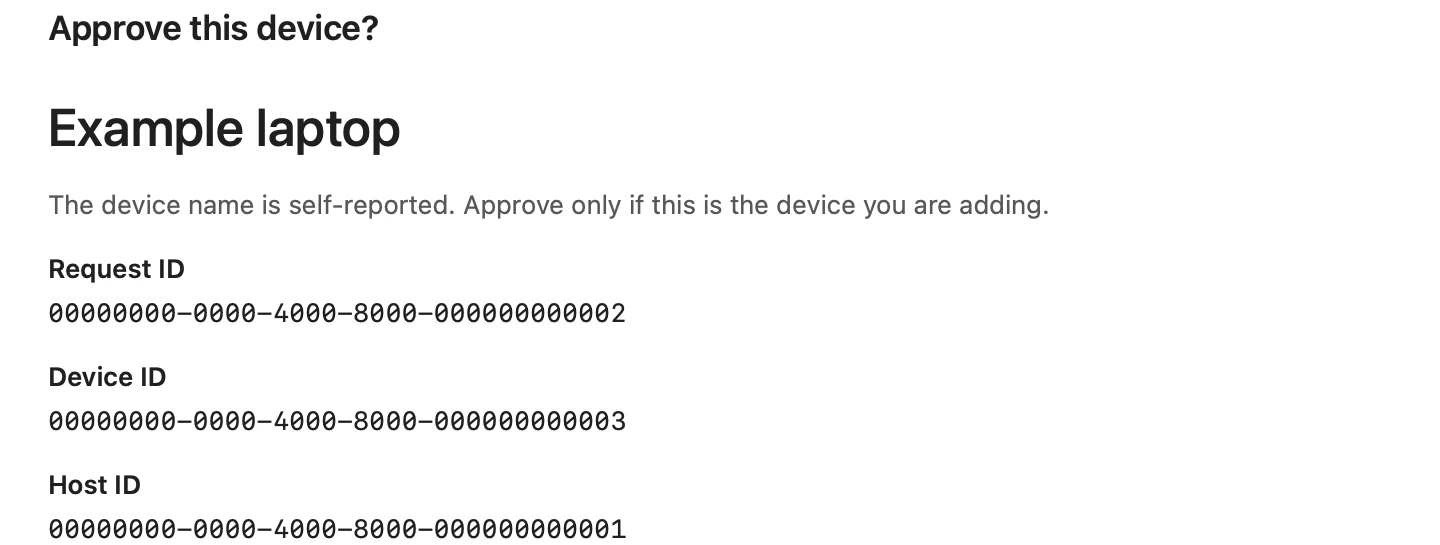 View full size
Vey Host on the computer sharing its screen. -
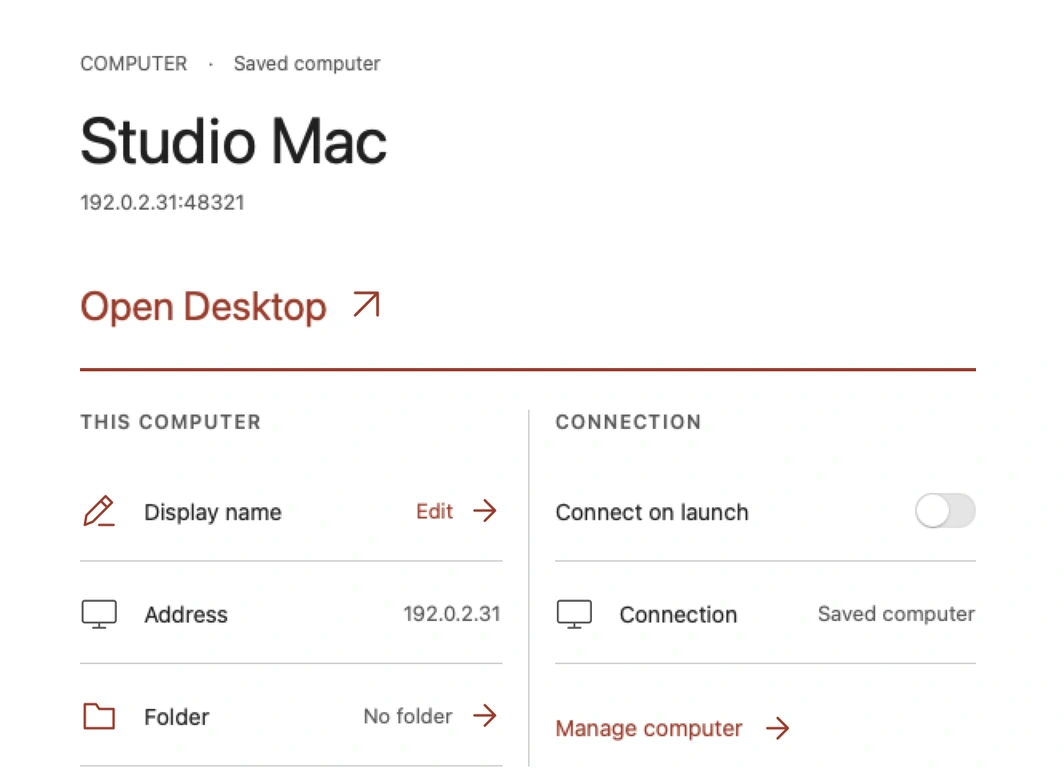
Open Desktop
Open the approved computer’s Desktop in Vey. Check that you can see the picture and use the pointer and keyboard before testing from another network.
 View full size
Open Desktop for the saved computer in Vey for Mac.
Session controls
Move the toolbar to a screen edge that works for you. Use it to zoom, adjust the pointer, check connection status, or switch monitors where supported.
 View full size
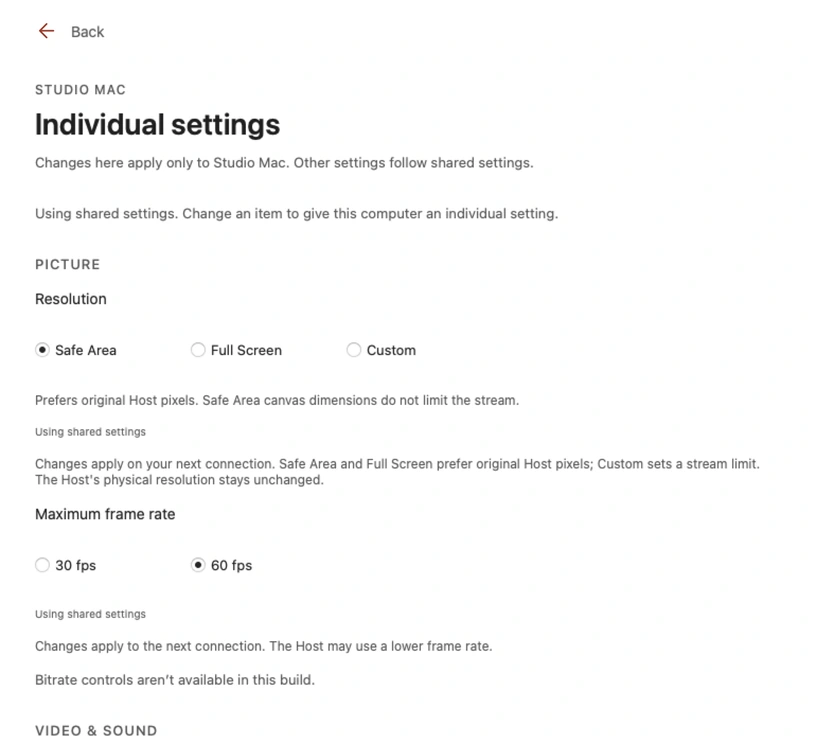
Per-computer settings
Open a saved computer’s settings to adjust streaming options for that connection.
 View full size
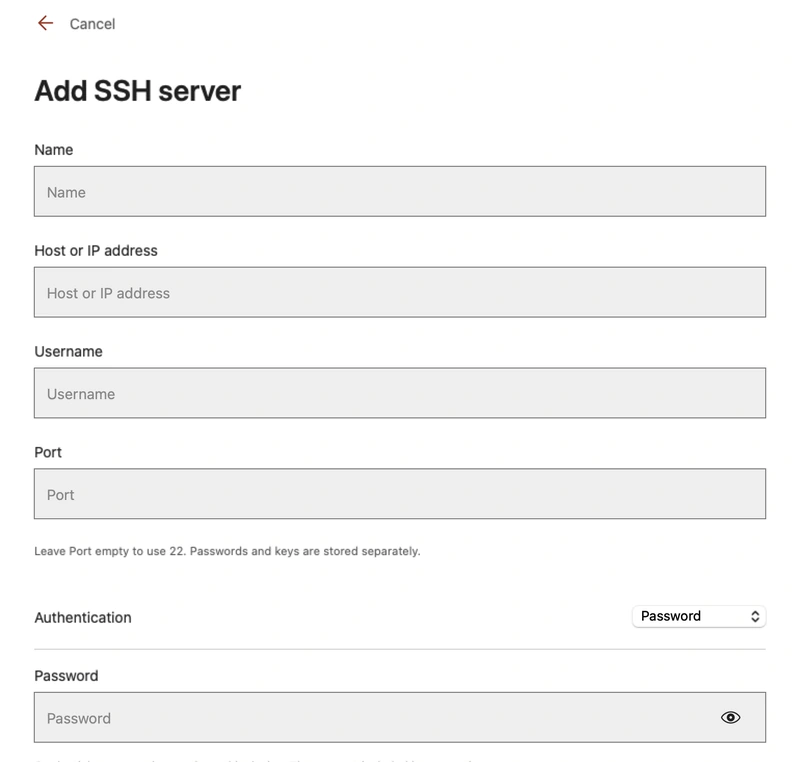
SSH
Open the SSH tab and add a server. Enter the address, port and username, then choose password or private key as offered by your build. On first connection, verify the server fingerprint before trusting it. SSH connects directly to the server and does not require Vey Host.
 View full size
Other networks
From another network, your device needs a route to the computer. Your setup may require a VPN or router and firewall changes. Vey does not provide an internet relay.
Use the Host address reachable through your network or VPN. If it works locally but not remotely, check the VPN route and firewall before changing registration or permissions.
Troubleshooting
- The computer does not appear
- Check that Vey Host is running, your device can reach its address, and any required network access is allowed.
- The screen opens but input fails
- Check keyboard and mouse access for that approved device. On a Mac, also check Accessibility in system settings.
- A fingerprint does not match
- Stop the connection and check the address and identity on the computer or with the SSH server administrator.
About these screens
Screenshots are from development builds. Example addresses and identifiers are for illustration. Labels and layout can vary by device.